Sell fabric, flooring, rope or bulk goods by the metre, square metre or kilo: the shopper types the amount, the price is exact. With area calculator and packs.
Tested on Shopware 6.7.16.0 & Shopware 6.6.10.31Updated Nov 12, 2026Version 1.0.0Compatible with Shopware 6.6.10+ and 6.7 No core file edits
Built forShopware
Sell by Measure for Shopware: sell by length, area and weight with an exact price.1 of 6
What it does
Sell fabric, flooring, rope or bulk goods by the metre, square metre or kilo: the shopper types the amount, the price is exact. With area calculator and packs.
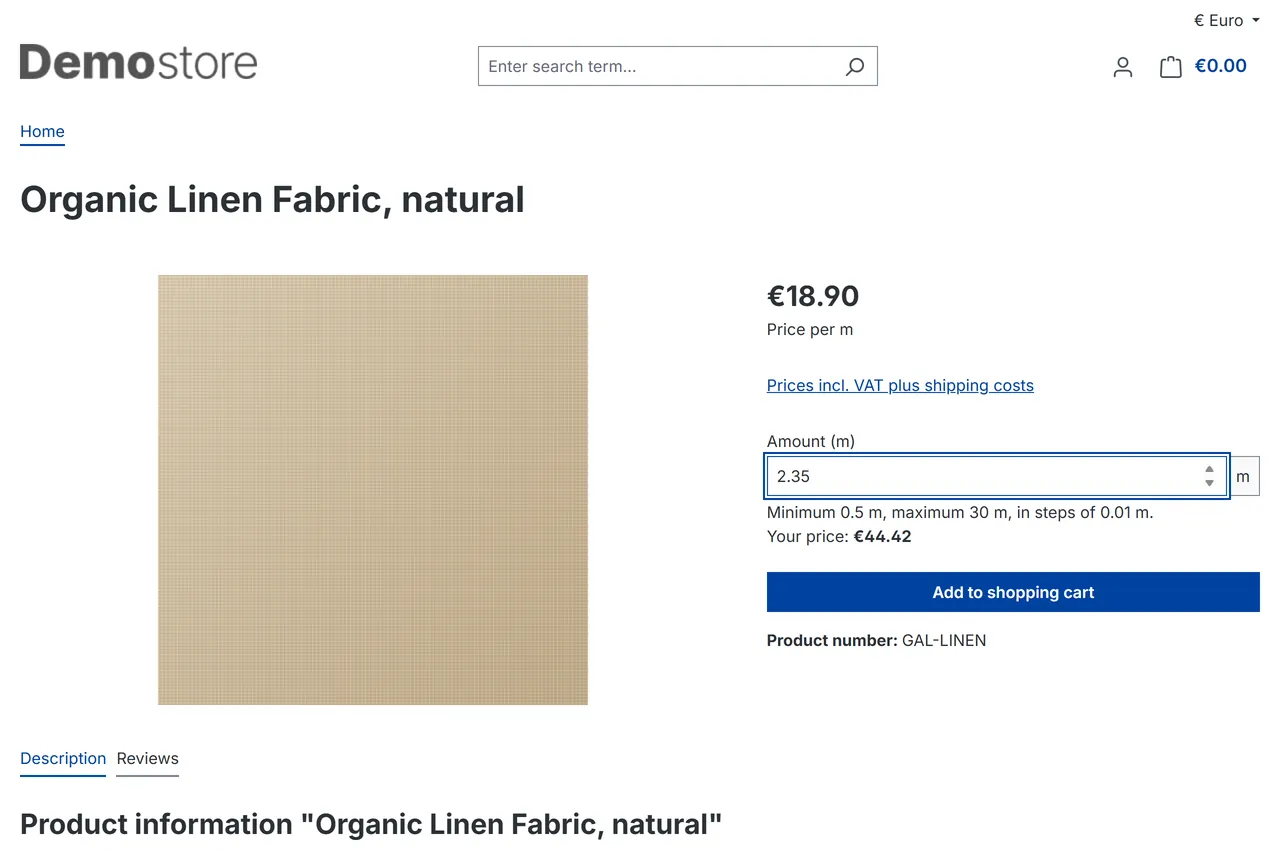
Customers buy the amount they need. Fabric by the metre, flooring by the square metre, cable, rope, chain, soil and feed by length, area, volume or weight. The shopper types 2.35 m and sees the price before the product goes into the cart.
Features
One price per unit, one rounding
Enter the price of one metre (or m2, kg, litre). The line total is calculated on the server and rounded once: 12.99 per m for 2.35 m is 30.53, not the 30.55 a per-step rounding would give.
Minimum, maximum, step and default amount per product, checked in the browser and again on the server
Percentage and absolute promotions, net prices, taxes and customer groups work
Area calculator and packs
Length x width, waste allowance in percent, rounded up to the next full step
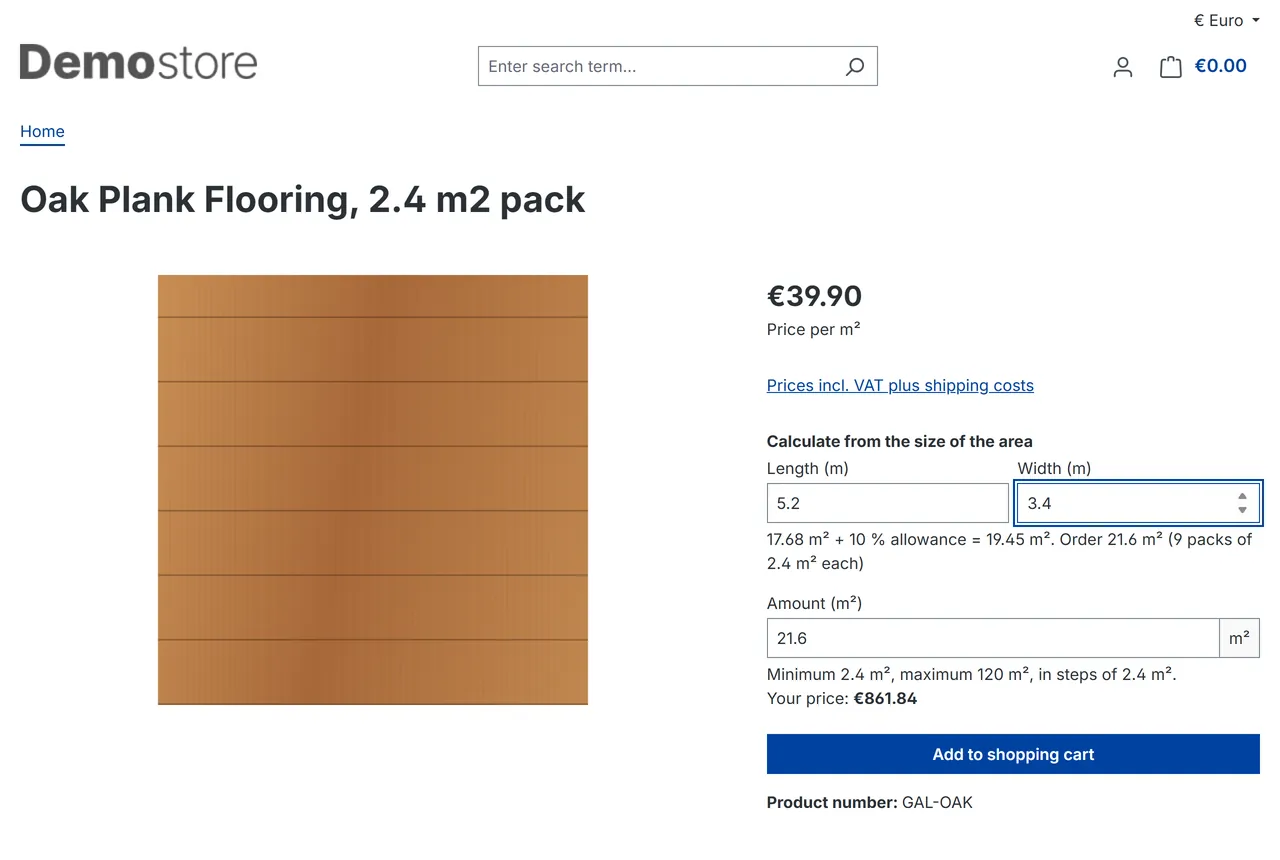
Pack mode for flooring and tiles: 17.68 m2 + 10 % = 19.45 m2 = 9 packs of 2.4 m2
Clear for customers and accountants
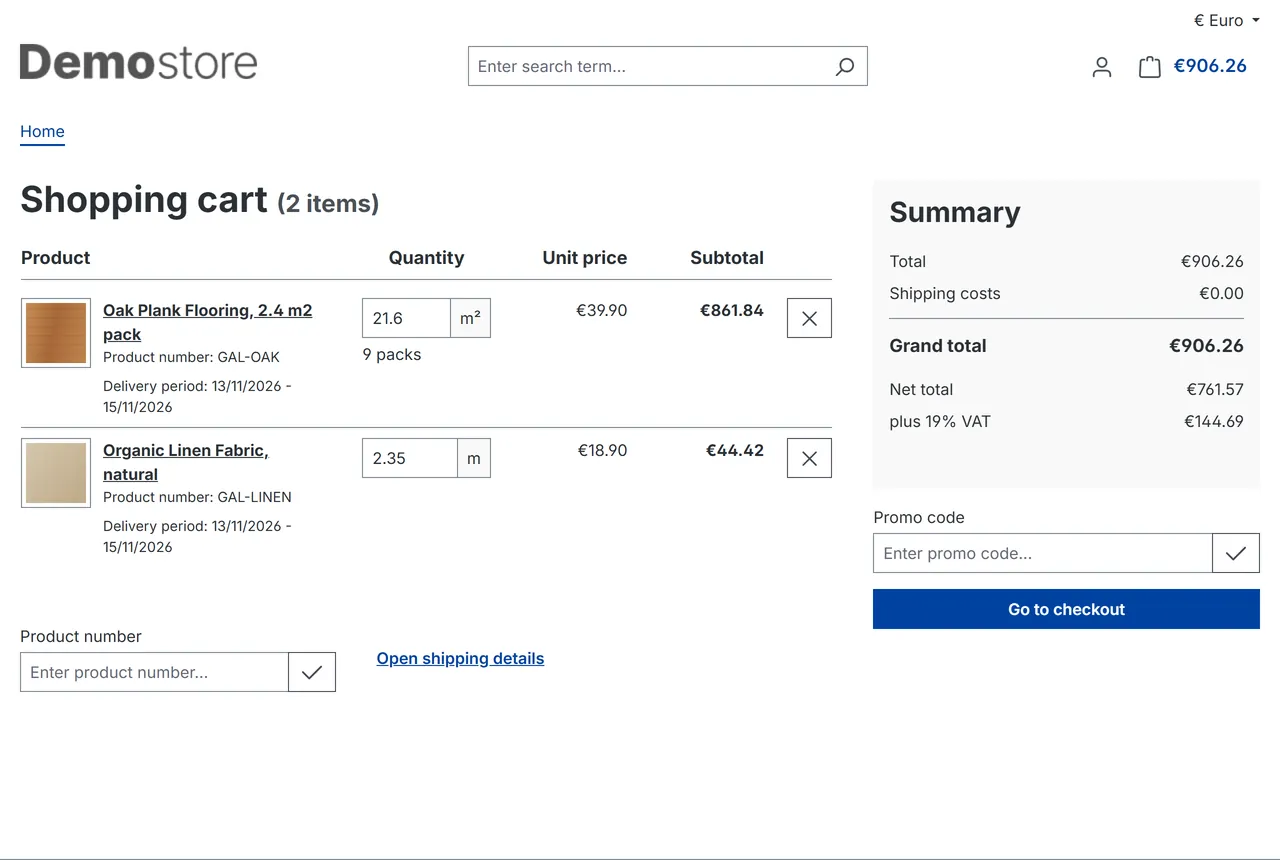
Product page, listing, cart and offcanvas cart show the amount and the price per unit
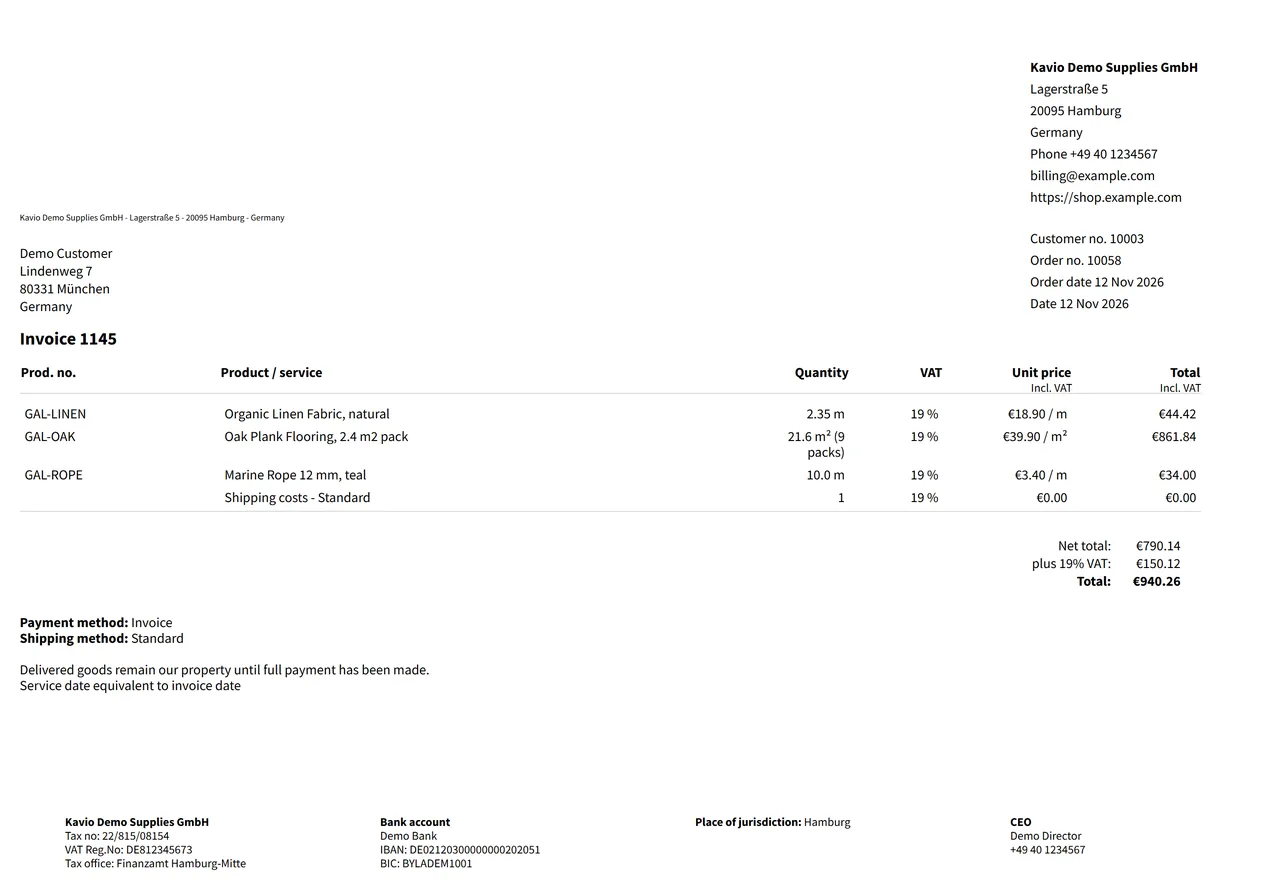
Invoices, credit notes, cancellations and delivery notes print "2.35 m" and "12.99 / m"
Stock and order quantities stay whole numbers (counted in steps), so stock tracking, purchase limits and exports keep working
Made for Shopware
Configure on the product (custom fields), variants inherit the settings
Cart processor, public events and templates only, no core overrides, pricing runs in your shop, only the licence check contacts our server
20 units from mm and cm to ft, yd, m2, l, kg, lb and more
Shopware 6.6 and 6.7, prebuilt storefront script (no Node.js needed)
Good to know (honest limits of 1.0)
Stock is counted in steps (100 m with step 0.01 = 10000); the docs show how to enter weight per step
Quantity tiers (advanced prices), fixed-price-per-item promotions, quantity based rules and quantity based shipping prices count steps, not metres; use weight or cart value rules
The strike-through list price of a product on sale is not shown on the measure line
The ZUGFeRD / XRechnung XML of Shopware's own documents carries the step count and the price per step; the line total is correct
Not a configurator: for made-to-measure products with formulas or several dimensions that change the price by more than length x width, use a configurator
What you get
Download & installThe plugin .zip for Shopware 6.6 and 6.7, installed in Extensions > My extensions > Upload extension (or with Composer). Download it from My licenses right after payment.
12 months of updates & supportNew versions and help for 12 months (24 or 36 months at checkout). After that the plugin keeps working; renew anytime at 50%.
License for your storeOne production domain with all its subdomains; staging and local development hosts are free. How licensing works
30-day refundFull refund within 30 days of your first purchase, no reason needed. Refund policy
Tested buildsShopware 6.6.10+ and 6.7. Tested on Shopware 6.7.16.0 and Shopware 6.6.10.31.
Documentation & supportFull guide (Installation, Configuration, Usage, FAQ) on this page. Tickets from your account, same-day reply on weekdays (Mon-Fri 09:00-18:00 UTC+3).
Compatibility
Sell by Measure works with Shopware 6.6.10+ and 6.7.
We list the builds we install and test on. “Tested” means the test plan ran on that build; “Supported” means the build is inside the supported range.
Compatibility
Version
Range
Runs on
Status
Shopware 6.7
6.7.x
PHP 8.2 – 8.4
Tested on 6.7.16.0
Shopware 6.6
6.6.10 – 6.6.x
PHP 8.2 – 8.4
Tested on 6.6.10.31
Hosting
Self-hosted and PaaS
Zip upload or Composer
Supported
1.0.0
Nov 12, 2026
Latest
First release: amount input with minimum, maximum, step and default per product; price per unit calculated on the server and rounded once per line.
Area calculator (length x width) with waste allowance; pack mode.
Amount and price per unit in the cart, offcanvas cart, invoices, credit notes, cancellations and delivery notes.
Stock, taxes, net prices, promotions and variants verified on Shopware 6.6.10 and 6.7.16.
How do I install the plugin?
Upload the plugin. Extensions > My extensions > Upload extension: choose the .zip from My licenses.
Install and activate. Click Install, then switch the plugin on. Shopware clears its caches for you.
Enter the license key. Open the plugin's configuration and paste the key from My licenses. You have 14 days to do it; staging and local shops are included.
Shopware 6.6.10+ and 6.7. Tested on Shopware 6.7.16.0 and Shopware 6.6.10.31. The Compatibility tab lists every version range.
Does it work on Shopware SaaS?
No. Shopware SaaS runs apps only, so plugins need a self-hosted shop or a PaaS (cloud) shop where you can install plugins.
Does it work with Composer-managed shops?
Yes. The package has a composer.json at its root, so it installs with a path or artifact repository as well as from the Administration. Shops that turn runtime extension management off install it with Composer.
Can I see it before I buy?
Yes. Every plugin page shows real screenshots from Shopware 6.7 and the full documentation, so you can check each screen before you buy. Every order also has a 30-day refund.
What does the license cover?
One production store domain with every subdomain (www, shop., staging.), plus local development hosts such as localhost, *.local and *.test. A store on another domain needs its own license; a second-store license is 40% off. You have 14 days after installing to enter the key. 12 months of updates and support are included; after that the plugin keeps working and renewals are 50% off. How licensing works
Can I get a refund?
Yes. Ask for a full refund within 30 days of your first purchase, no reason needed: open a ticket or write to [email protected] with your order number. The money goes back to the card or bank account you paid with within 5 business days of approval. Refund policy
How do I get help?
Open a ticket from your account, so your license details are attached. We answer with a same-day reply on weekdays (Mon-Fri 09:00-18:00 UTC+3). Support policy. Not a customer yet? Ask a pre-sales question.
Sell by length, area, volume or weight: customers enter 2.35 m or 4.2 m2, the price is calculated per unit on the server.
Works with Shopware 6.6.10 and later and Shopware 6.7 (self-hosted and PaaS; Shopware SaaS runs apps only, not plugins).
Product page with the amount input and the live price
What you get
Amount instead of piece count on the product page, with minimum, maximum, step and default amount per product.
The price follows the amount. The product price is the price of ONE unit (per m, per m2, per kg ...). The line total is calculated on the server and rounded once, so 12.99 per m for 2.35 m is exactly 30.53.
Area calculator: length x width, optional waste allowance in percent, rounded up to the next full step.
Pack mode for flooring, tiles and similar goods: set the step to the area of one pack and the calculator shows the number of packs.
Cart, offcanvas cart and documents show the amount ("2.35 m") and the price per unit ("12.99 / m"); invoices, credit notes, cancellations and delivery notes included.
Stock, taxes, net prices, promotions and variants keep working: the plugin changes the price of the line, not the way Shopware calculates carts.
Pages
Installation
Requirements: Shopware 6.6.10 or later, or Shopware 6.7, self-hosted or PaaS; PHP 8.2 to 8.4.
Download the plugin zip from your Kavio Labs account.
In the Administration open Extensions > My extensions and choose Upload extension. Select the zip.
Click Install, then switch the plugin on.
Recompile the theme if your shop does not do it automatically: bin/console theme:compile (the plugin ships a prebuilt storefront script, no Node.js needed).
Command line: bin/console plugin:zip-import KvSellByMeasure-1.0.0.zip, then bin/console plugin:install --activate KvSellByMeasure, then bin/console theme:compile and bin/console cache:clear.
First steps
Open Settings > Extensions > Sell by Measure, enter your licence key and choose Save and verify. The Administration shows a reminder until the key is verified (14-day start period); prices and the shop keep working.
Open a product, tab Specifications, card Custom fields > Sell by Measure and switch Sell by measure on (see Configuration).
Set the product price to the price of one unit (per m, per m2 ...) and the stock in steps (see the FAQ).
Open the product in the storefront and put it in the cart.
Update
Upload the new zip the same way and choose Update. Your settings and licence stay.
Deactivate and uninstall
Before you deactivate or uninstall the plugin, set the measure products to inactive or convert their price and stock. Without the plugin a product priced at 12.99 per metre with its stock counted in steps sells ONE step for 12.99. Existing orders keep their data.
Choose Uninstall in My extensions. Tick Keep user data to keep the settings; otherwise the custom field set and the settings are removed. Values stay in the product data but are no longer used.
Configuration
Licence
Open Settings > Extensions > Sell by Measure. Enter your licence key in the Licence card and click Save and verify.
Per product
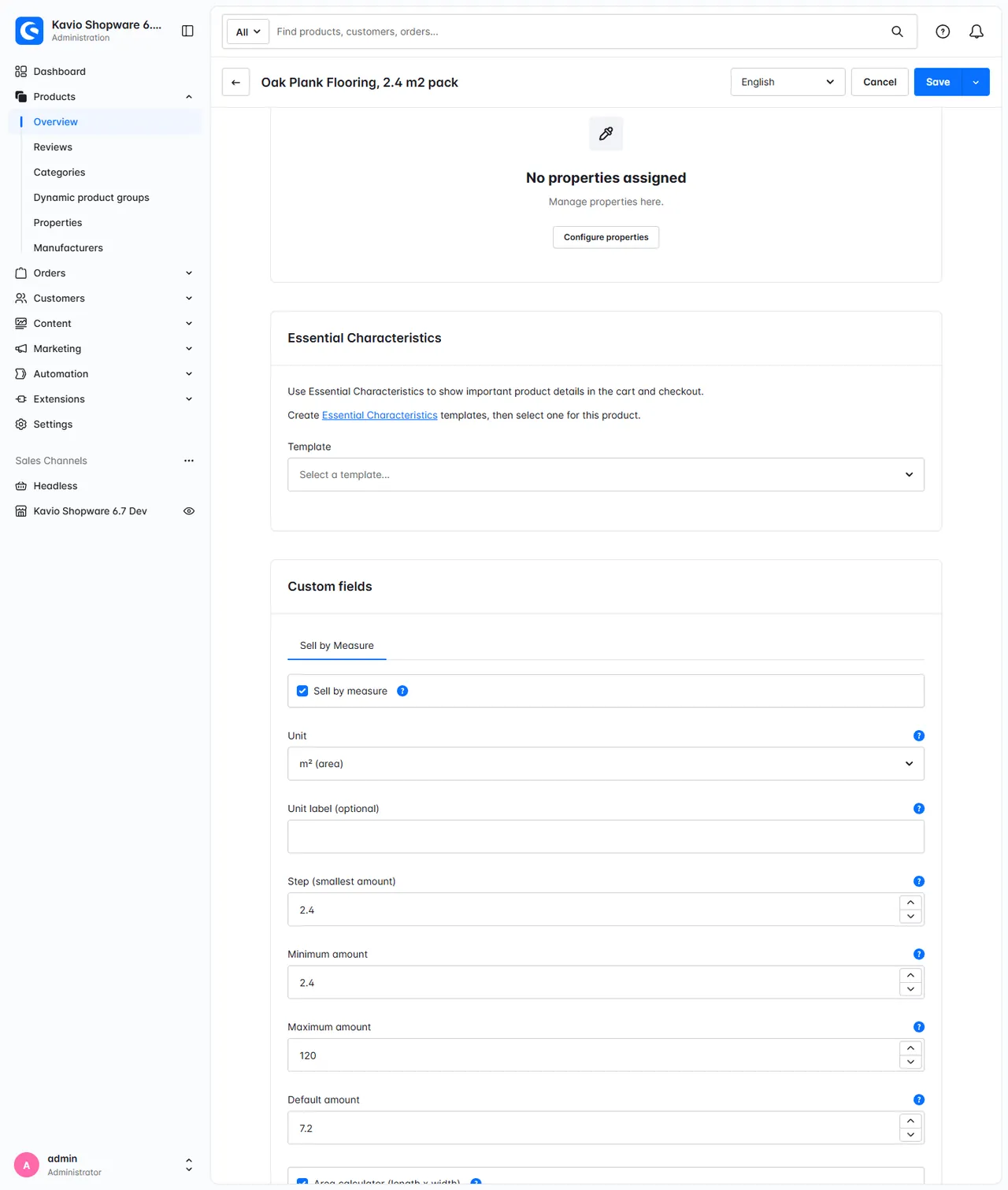
Open the product, tab Specifications, card Custom fields, set Sell by Measure. Variants inherit the values of their main product.
Sell by Measure fields on a product
Field
Meaning
Sell by measure
Switch on for this product
Unit
The unit of the price and of the amount: mm, cm, m, km, in, ft, yd, cm2, m2, ft2, yd2, ml, l, m3, gal, g, kg, t, oz, lb
Unit label
Optional text shown instead of the symbol, for example "rm"
Step
The smallest amount, for example 0.01 for centimetres when the unit is m, or 0.1 for 100 g when the unit is kg
Minimum / Maximum amount
Per order line; maximum 0 means no maximum
Default amount
Pre-filled on the product page
Area calculator
Area units only: the buyer enters length and width
Waste allowance
Percent added by the area calculator, for example 10
Pack name
Pack mode, for example "packs" or "boxes"
Price, stock and weight: the three rules
Price = price of ONE unit. Enter 12.99 for a fabric that costs 12.99 per metre. Advanced prices (quantity tiers) count STEPS, not metres; use them only if you want that.
Stock is counted in steps. 100 m of fabric with step 0.01 is a stock of 10000. A product with step 1 (whole metres) keeps the stock in metres.
Weight is per step. Shopware multiplies the product weight by the cart quantity, which is the number of steps. For a fabric that weighs 200 g per metre with step 0.01, enter 0.002 kg. Shipping rules by weight then see the right total.
Pack mode
For goods sold in packs of 2.4 m2: unit m2, step 2.4, minimum 2.4, pack name "packs", price per m2. The buyer enters the room size; the calculator adds the waste allowance, rounds up to full packs and fills the amount. The cart, invoice and delivery note show "21.6 m2 (9 packs)".
Rounding
The line total is price per unit x amount, rounded once with your currency rounding settings. The price per step is shown without a rounding error that could add up to a cent difference.
Usage
Product page
The shopper sees the price per unit, the amount field with the allowed range and the live price for the amount. A minimum, maximum and step violation is shown before the product can be added; the server checks the same rules again and moves an amount outside the limits to the nearest allowed value with a message.
Amount input and live price
Area calculator
With Area calculator switched on, the buyer enters length and width in the unit of the area (m for m2, ft for ft2). The plugin adds the waste allowance, rounds up to the next full step and fills the amount, for example 5.2 m x 3.4 m = 17.68 m2, plus 10 % = 19.45 m2, 9 packs of 2.4 m2 = 21.6 m2.
Area calculator with waste and packs
Cart and checkout
The amount is editable in the cart and in the offcanvas cart; the price per unit is shown next to the line total. Percentage and absolute promotions, taxes, net prices and customer groups work. Anything that counts quantity counts steps (see the FAQ): fixed price per item promotions, buy-X-get-Y, rule builder conditions on quantity and shipping prices by quantity.
Cart
Orders and documents
The order line keeps the amount, so invoices, credit notes, cancellations and delivery notes show "2.35 m" and "12.99 / m". The order quantity and the stock reduction count steps (235 for 2.35 m with step 0.01).
Invoice
Orders created in the Administration
In Administration order creation the quantity is the number of steps (235 for 2.35 m with step 0.01) and the price field is the price per UNIT (12.99). The line total is calculated correctly. When you recalculate an existing order the line keeps the unit, step and limits it was sold with, even if the product settings changed later.
Headless and API
Add to the cart with a line item whose quantity is the number of steps (amount divided by step). The price is calculated by the same cart processor. The measure data on the line (kvMeasure) is protected and not returned by the Store API: a headless front end calculates the amount as steps x step from the product custom fields (kv_measure_step, kv_measure_unit).
FAQ
Does it work on Shopware SaaS?
No. Shopware SaaS runs apps only. The plugin needs a self-hosted or PaaS shop.
Why is the order quantity 235 and not 2.35?
Shopware line item quantities are whole numbers. The plugin keeps the quantity as the number of steps, so stock, purchase limits and the order data keep working natively, and shows the amount (2.35 m) everywhere a customer or an accountant looks.
How do I enter stock?
In steps: stock = available amount divided by the step. 100 m with step 0.01 = 10000.
Which price do I enter?
The price of one unit (per m, per m2, per kg). Tax and customer group prices work as always.
Does it work with variants?
Yes. Set the fields on the main product; variants inherit them and have their own stock.
Can the buyer enter any decimal?
Only multiples of the step. 2.355 with step 0.01 is refused by the browser; the server rounds to the nearest step.
What happens with promotions, rules and shipping?
Percentage and absolute promotions, net price customer groups and tax rules work (10 % cart promotion and a net group are covered by the tests). Everything that counts quantity counts steps: "fixed price per item" promotions, buy-X-get-Y groups, rule builder conditions on line item quantity or number of items, and shipping price matrices by quantity (235 "items" for 2.35 m). Use weight or cart value based shipping and rules.
What happens if I deactivate the plugin?
Measure products then sell one step for the price of one unit. Set them to inactive first (see Installation).
What about e-invoices (XRechnung, ZUGFeRD)?
Shopware's own ZUGFeRD document shows the step count and the price per step. Known limit of version 1.0: the XML carries the step count and the price per step, the line total is correct.